Test & Tag register

The Test & Tag register can be used with items registered in the Equipment Register, or miscellaneous items, eg, power boards or urns. Each Test & Tag record uses a Test Date to separate it from other Test & Tags, The Test & Tag register is found under the R menu.
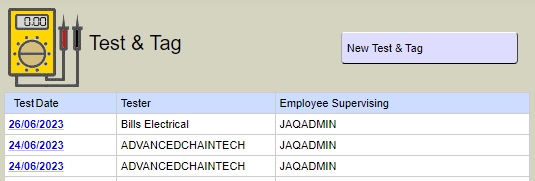
To add a new Test & Tag record, click New Test & Tag
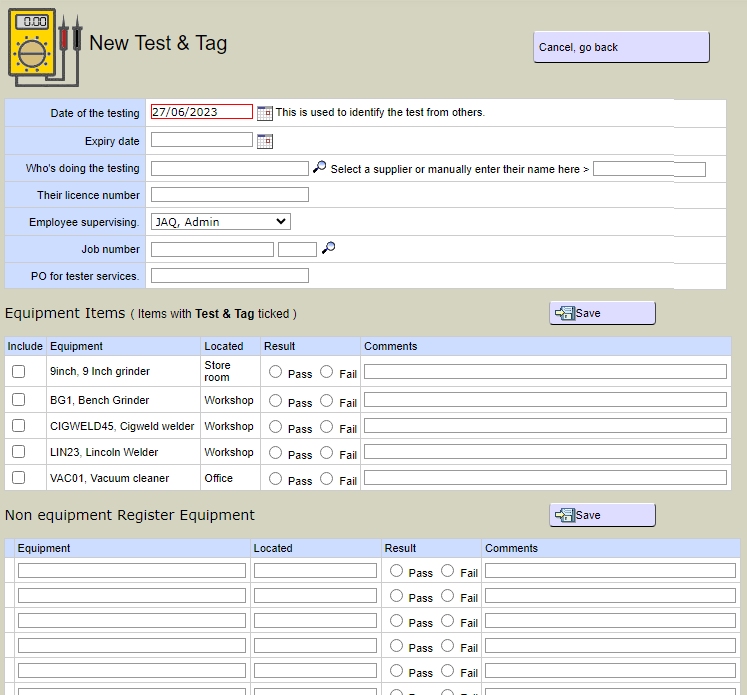
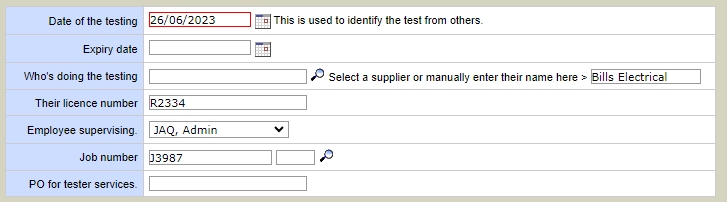
In the first panel, enter the date of the test ( required ), all other data is optional, but helps with reporting and alerts.
Next we have a list of items in the equipment register that have been flagged as part of the Test & Tag process. To include a equipment register item in the Test & Tags, go to the equipment register,open and edit the equipment, and tick the option Test & Tag.

Back on the Test & Tag page, tick the checkbox next to equipment register items you want to include in this Test & Tag record. We also use this page after the test and tag is completed, to enter the results of the tests.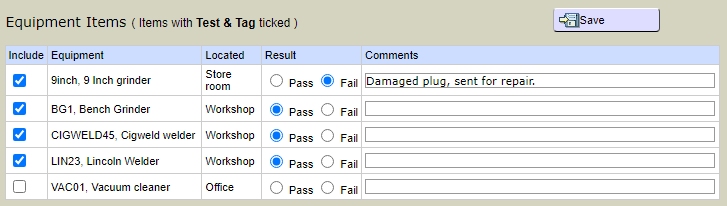
The next panel is for items not in the equipment register. Type in the equipments name, its location, and test results ( after the tests have been done ).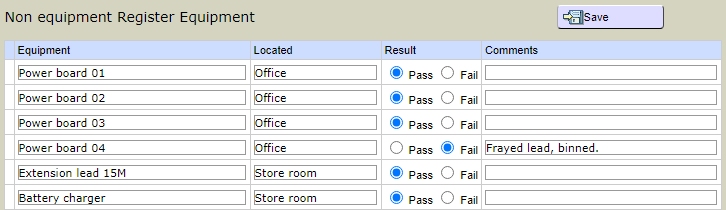
Remember to save.
Below is the View Test & Tag screen. It gives a summary of the test results, and a few handy buttons.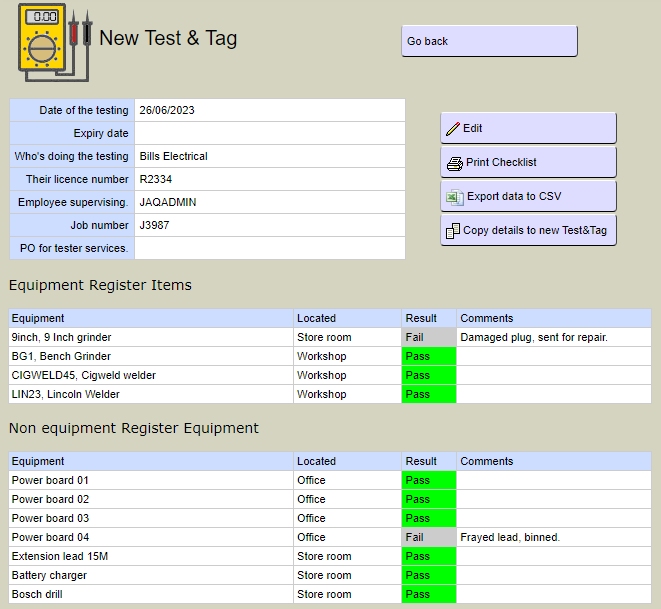
 |
Open the record for editing and adding results of the tests. |
 |
Prints a checklist you can use while doing the tests. |
 |
Export the full test results as a CSV ( Excel ) file. |
 |
Copy this test to a new record. This is especially handy for the non equipment register items, so you dont need to enter them in again for every test. |
If the item on the Test & Tag register is from the equipment register, when you view that item on the Equipment Register, there will be a new panel called Test & Tag,and will show the results of any tests.

|

