Manual Ref-173
Using Weights

Line items in JAQ's Jobs, Quotes and Deliveries can include a weight field. This is the weight per each unit, in kg.
JAQ will use the weight field to calculate the entire weight for the job. So if the weight of a line was 2kg, and there was a Qty of 5, JAQ will add 10kg to the job card.
Note:
Weights are in kg.
The Weight column displays the weight before its multiplied by the Qty field.
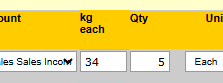
The column is labeled kg each
Before we can use Weights, we need to enable this option in the JAQ Setup screen ( Spanner - JAQ Setup - Setting A35... ).
- A35 will enable the Weight column on Kits, Quotes, Jobs and Delivery items.
- A35a will add a weight column to the Quote PDF
- A35b will add the weight column to the printed Delivery Docket.
|
When you edit a Kit, Quote, etc, you can manually enter the weight into the line items kg each field. This is the weight per each item, the Qty value will calculate the entire weight for the line. JAQ will tally all the weights on the list of items to give you a total weight, dissplayed further up the page.
|
|
 |
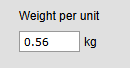
| You can also set up a weight for any stock item, and JAQ will automatically add this to the line items where you select that stock item. To do this, edit the stock item, enter its weight, and save. The weight you enter will be the weight per each purchased item. |
|
 |
Example:
You stock a 8 meter length of 50mm round bar. It weighs 125kg for the length. You add a full length to a quote, so the weight carried to the quote is 125kg.
If you sell buy the meter, and there are 8 meters in the purchased unit, then JAQ will calculate the weigh per meter as 15.625kg, and carry that to the quote's weight column.
Kits also have the weight column, so when you add a kit to a quote or job, JAQ will bring over the kits weight to the items weight column.


